
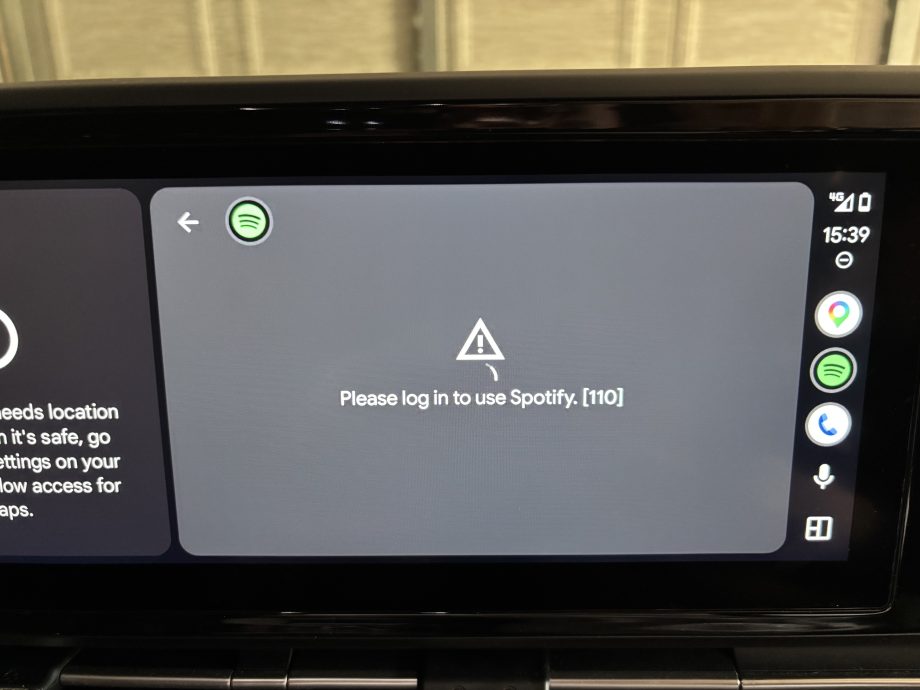
Spotify missing from Android Auto? Start with the phone, not the car screen. A hidden or temporarily disabled app may not appear in the launcher. But if the Spotify icon does appear and the screen says “Please log in to use Spotify. [110],” you have a different problem: check the Spotify sign-in on your phone first.
The steps below are for Android phones using Android Auto, whether the phone connects by cable or through a compatible wireless adapter. Park safely before changing phone settings.
First, identify which problem you have
- No Spotify icon in the Android Auto app launcher: check whether Spotify is enabled in the launcher settings, installed, updated and active on the phone.
- Spotify icon is visible, but the app asks you to log in: the launcher setting is not the likely issue. Open Spotify on the phone and confirm that you are signed in and online.
If Spotify is missing, check Customise Launcher
- While parked, open Settings on your Android phone and search for Android Auto. The menu path varies between phone brands and Android versions.
- Open the Android Auto settings, then select Customise launcher (sometimes shown as Customize launcher).
- Find Spotify in the app list. Make sure its checkbox is ticked. If it is not, tick it.
- Reconnect Android Auto and open the app launcher on your car display to check whether Spotify appears.
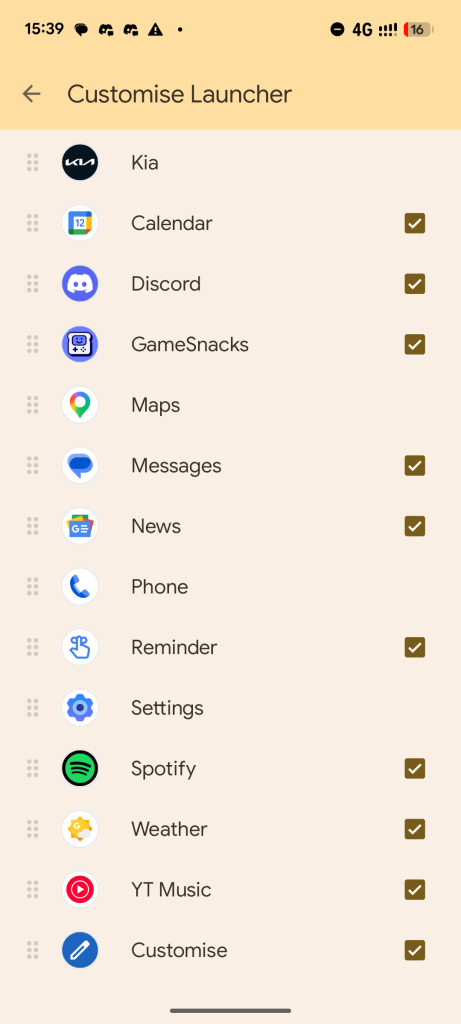
In our phone screenshot, Spotify is already ticked. That is what the enabled state looks like on this particular phone; your icons, colours and menu labels may differ. If Spotify was unticked on your phone, enabling it may solve the missing-icon problem. If it was already ticked, continue with the checks below rather than toggling it repeatedly.
Spotify still not in the app list?
Confirm that Spotify is installed from Google Play, open it on the phone, and check for app updates. Google notes that some phones, including certain Samsung models, can temporarily disable apps that have not been used for a while; opening the app may restore it to Android Auto’s launcher. If you use a phone feature that puts unused apps to sleep, check that setting too. Then reconnect the phone and look again.
Only Android Auto-compatible apps can appear in its launcher. If Spotify never appears in the phone’s Android Auto app list after these checks, consult the current Android Auto guidance for missing apps and your phone maker’s instructions.
If the screen says “Please log in to use Spotify. [110]”
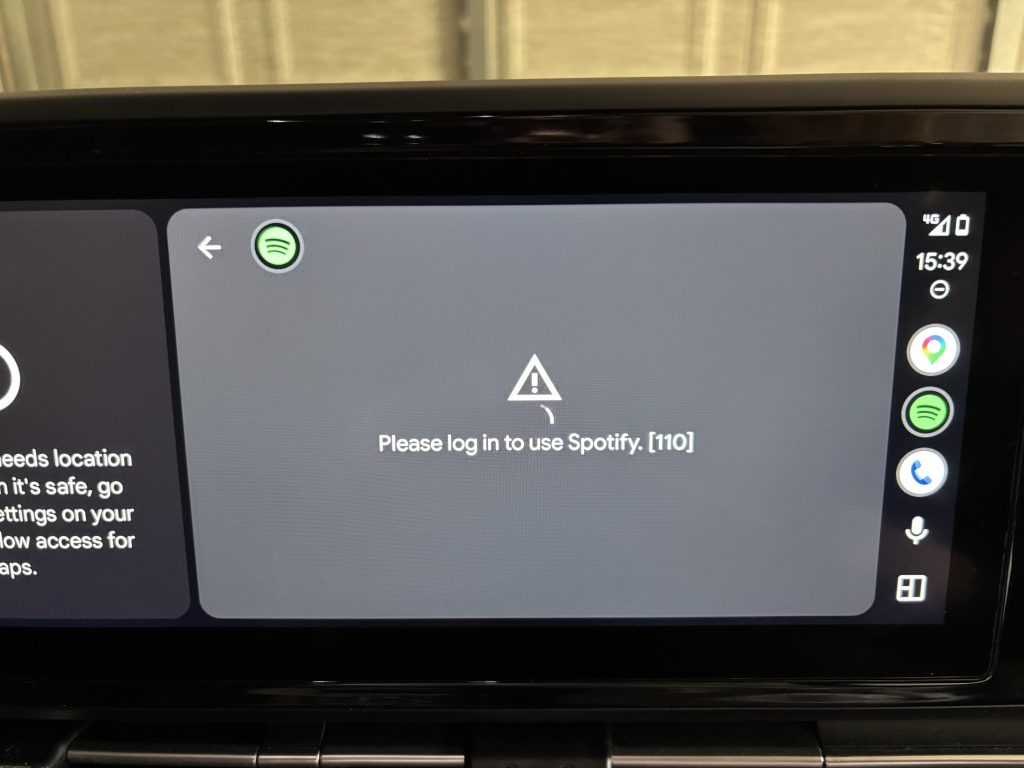
The photo below shows Spotify’s icon on the car display and a sign-in message. This is not an example of a hidden Spotify icon. The message points you towards checking Spotify on the phone, but the photo alone does not establish what the numeric code means or prove a single root cause.
- While parked, open the Spotify app on your phone. Confirm you are signed in to the account you intend to use, and that Spotify can load and play there.
- Check that the phone has an internet connection. Google advises signing in to a media app on the phone before starting Android Auto.
- Update Spotify and your phone’s software if updates are available. Close and reopen Spotify, then reconnect Android Auto.
- If the problem continues, Spotify recommends restarting the app and car. Reinstalling Spotify is a later troubleshooting option, but be aware that downloaded music and podcasts will need to be downloaded again.
If Spotify works on the phone but repeatedly fails only on the car display, contact Spotify Support with the exact message, your phone model and Android version, and the way your car connects. Avoid treating “110” as a confirmed adapter fault without further testing.
Does a wireless CarPlay and Android Auto adapter change this?
Our 2-in-1 Wireless CarPlay & Android Auto Adapter converts an existing wired CarPlay or Android Auto connection to wireless. It does not add Android Auto to a car that lacks it, and it does not manage which phone apps are ticked in the launcher or whether Spotify is signed in. If Android Auto itself connects successfully but only Spotify is missing or asking for login, work through the phone and app checks above first.
Frequently asked questions
Where is the Android Auto setting on my phone?
Search your phone’s Settings app for “Android Auto,” then look for “Customise launcher” or “Customize launcher.” The exact navigation varies by manufacturer and Android version.
Spotify is ticked, so why can’t I see it in the car?
A tick confirms the launcher selection on the phone shown in the screenshot; it does not rule out every other issue. Open and update Spotify on your phone, check whether your phone has put the app to sleep, and reconnect Android Auto.
Does the “Please log in” screen mean Spotify is hidden?
No. In the example photo, Spotify is visible on the car display. Check the Spotify account and internet connection on the phone instead.
Sources: Google: Listen to media with Android Auto; Google: Find an app that is not on the App Launcher; Spotify: Spotify in the car.