
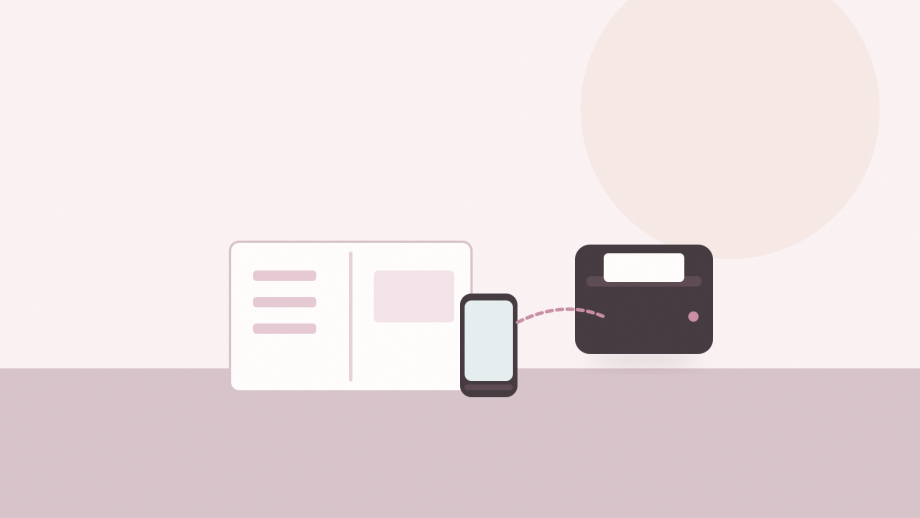
A pocket thermal printer is best understood as a note and label machine, not a photo printer. It heats special paper instead of spraying ink, so it prints in one colour and needs no cartridges. This model is listed at 7.87 x 7.87 x 3.8cm and 400g, with a rechargeable battery, the Fun Print app and ten rolls of thermal paper. The useful questions are whether the app works with your phone, what paper it takes, and what you expect the output to look like.
1. Explain thermal printing versus ink printing
A thermal printer does not use ink. The print head heats a coating on the paper, and the coating darkens where the heat is applied. That is why the printer can be small and why there is nothing to refill. It also explains the limits: the output is monochrome, the paper is special, and the print can fade when it is exposed to heat, sunlight or certain plastics.
Do not expect full-colour photographs. A thermal head can produce black marks on a light background, and the app may convert an image into a pattern of dots. The result can look like a receipt: fine for a label, disappointing for a framed picture. The listing does not state a print resolution, so judge the output by the paper width and by sample prints if you can.
Thermal prints are not archival. Keep them away from a car dashboard, a hot window and plastic sleeves that contain plasticisers. For a journal that lasts decades, use ordinary paper and keep this device for temporary notes and labels.
The running cost is the paper, not ink. Check the roll size before you commit, because a printer with an unusual roll width can be expensive to keep supplied.
2. Check phone app and Bluetooth setup
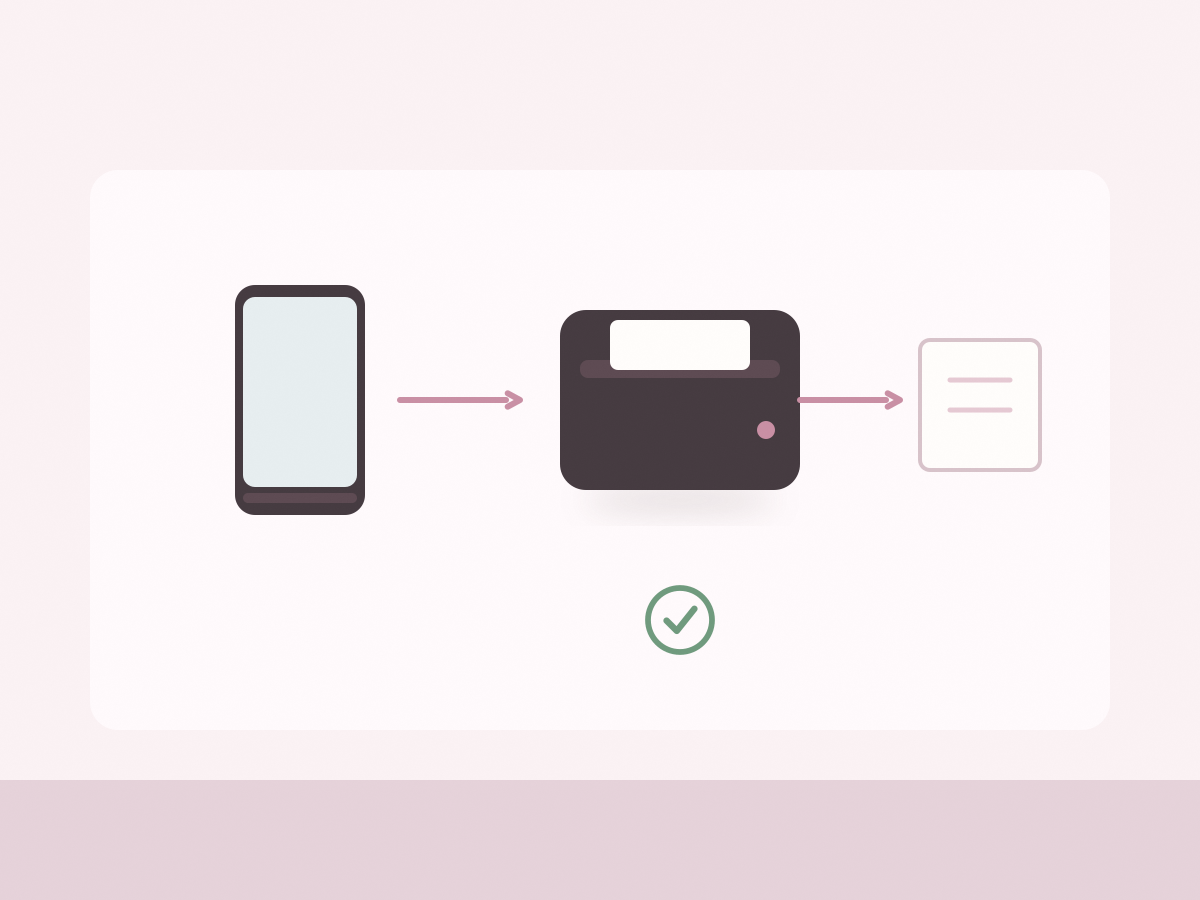
The listing gives three ways to install the Fun Print app: scan the QR code in the manual, search Google Play, or search the App Store. It also describes the sequence: turn the printer on, enable Bluetooth, open the app and select MX06.
Before buying, confirm that the app is available in your region and works with your phone’s operating system. Check the minimum version in the store listing, and read what permissions the app requests. On Android, Bluetooth scanning may require location permission, and photo printing will need access to your images.
Ask whether the app needs an account or an internet connection. A printer that depends on a cloud service can become a paperweight if the service changes. Test whether printing works offline while you can still return the device.
Pairing is usually a one-time step, but Bluetooth can be fussy. If the printer does not appear, turn it off and on, forget the device in your phone settings, and try again. Keep the printer close during pairing and do not pair a second phone at the same time.
3. Verify paper-roll quantity
The title says ten rolls of thermal paper are included, and the description repeats that the printer comes with ten rolls. Count them on arrival and check the width against the listing. The width is not stated, and thermal rolls are not universal: too wide will not fit, and a narrow roll can feed unevenly.
Decide whether you want plain paper or adhesive sticker paper. Plain paper suits lists, planner inserts and study notes. Sticker paper suits jar labels, parcel tags and page markers. Both are thermal papers, so both can fade, and neither is waterproof. Check whether the listing specifies the paper type or only the number of rolls.
Load the roll with the coated side facing the print head, following the diagram in the manual. If the print is blank or faint, the roll is probably the wrong way round. Do not pull the paper; open the cover and release the roll.
Store spare rolls in a cool, dry place; heat and sunlight degrade the coating before printing.
4. Suggest realistic note and journal uses
The most useful jobs are small and disposable. Print a label for a jar of leftovers, a name tag for a lunchbox, a shopping list for the fridge, or a short quote for a journal page. The app’s template library is described as covering holiday themes, animals, letters, plants and food shapes.
For study, print a question on one side of a card and write the answer by hand. For planning, print a week strip and stick it into a notebook. For craft, print an outline and colour it in. These uses play to the printer’s strengths: quick, cheap, one-colour output that does not need to last forever.
Be realistic about photographs. A small monochrome image can work as a memory prompt in a journal, but it will not match a photo-lab print. Avoid thermal output for anything that must survive heat, moisture or a long archive.
Also check the weight. The listing says 400g, which is heavy for something described as a pocket printer. Confirm whether that figure includes the paper and the box, because it affects whether you will actually carry it.
The HUIJUTCHEN pocket thermal printer is a sensible buy if you want quick monochrome labels and notes and you are willing to check the app and paper supply. Confirm the roll width, the phone compatibility and the return window before ordering.
Before you buy: a short checklist
- Confirm the Fun Print app is available for your phone.
- Check the app’s permissions and whether it needs an account.
- Ask whether printing works without an internet connection.
- Verify the paper-roll width, not just the quantity.
- Decide between plain paper and sticker paper.
- Do not expect colour photographs or archival prints.
- Confirm what the 400g weight figure includes.
- Check the current price, stock and shipping on the listing.
Two common questions
Does this printer use ink cartridges?
No. It is a thermal printer that heats special paper, so there are no cartridges to replace. The trade-off is monochrome output and paper that can fade.
How many paper rolls does the listing say are included?
Ten. The title and description both mention ten rolls, but the roll width and paper type are not stated in the source data.